
Gentle introduction to Tmux
In our research lab we just had a new high-performance computing machine. However this is where the good news end, since we are having our networking infrastracture redone we are facing some challenges while trying to train voilance detection model. The networking constraints we have right now are:
- No remote access: The machine is only accessible through the local network, with no internet connectivity.
- Unstable network: The local network is shaky and unreliable.
- Shared hardware: We are sharing the hardware with other lab members.
These limitations make it challenging to maintain long-enough sessions since the training would take hours (maybe days).
The Solution: Tmux:
Tmux is a terminal multiplexer. It lets us use a single env to launch multiple terminals, each running each own process(programs), while providing the ability to persistent(sticky) sessions. Some of the features that tmux blesses us with are:
- Detach(leaving session running in the background) and reattach to sessions at will.
- Manage multiple windows and panes within a single session.
- Keep our sessions running even if the SSH connection drops.
I want to emphasize abit more about tmux’s architecture, since tmux uses a client-server model, you can control windows and panes from a central location or even jump between multiple sessions from a single terminal window. This clientserver model also lets you create scripts and interact with tmux from other windows or applications.
Installing tmux:
First of all tmux is only available on Linux, and MacOs. For it to be usable on a windows machine, the use of WSL is required.
tmux comes pre-packaged with alot of linux distros for example Debian, and Ubuntu, and it is available on all the major package managers, for more details please check the docs.
Basic Usage of tmux:
Create a new session:
To create a new named session, we can run the command: tmux new -s SESSION_NAME.
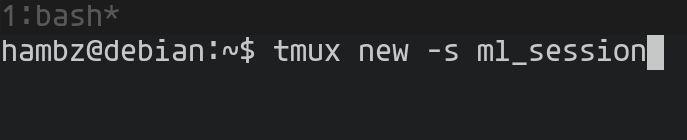
Create New Session
Attach & Detach:
Now we can detach from that session while keeping any processes running working on the server(remote machine in our case), we will have to use a key-combination to perform any action (detach from the session).
Before we continue, we must introduce command prefix. The default prefix, is Ctrl+b. Before running any command we must do the prefix first.
To Detach from a session we can do: Ctrl+b d, or prefix d. To attach back we can run tmux attach SESSION_NAME, or just simply tmux attach to attach to the lastly attached session.
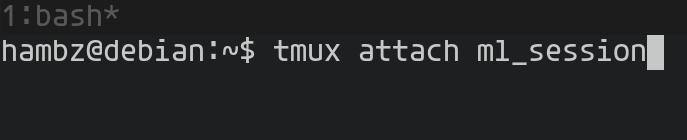
Attach back session
List available session:
tmux ls is the command used to list all the available sessions.
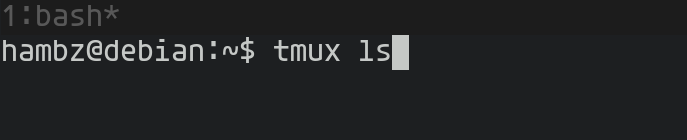
list sessions
Killing a session:
If you exit out of tmux it will kill the current session, or this command could be used: prefix &. Or more formaly if you close all the windows in a tmux session.
TL;DR
- ssh into the remote sever:
ssh USERNAME@IP_ADDRESS. - Once inside the remote machine, create a new tmux session
tmux new -s SESSION_NAME. - Run the program you wish to keep running in the background.
- Detach from current session run the follwing key combination:
Ctrl+b d. - Now you can disconnect from that ssh session safely.
- Once in-need to access that command, just ssh back into the remote machine, then attach back to that session using the follwing command:
$ tmux attach SESSION_NAME.
But why persuit a PhD ?, It’s simple—because it’s named after my favorite perk-a-cola Phd Flopper.